Console
To use the ABC WaaS Console, registration is required. Please contact abcwaas@ahnlab.io.
Main Page Layout
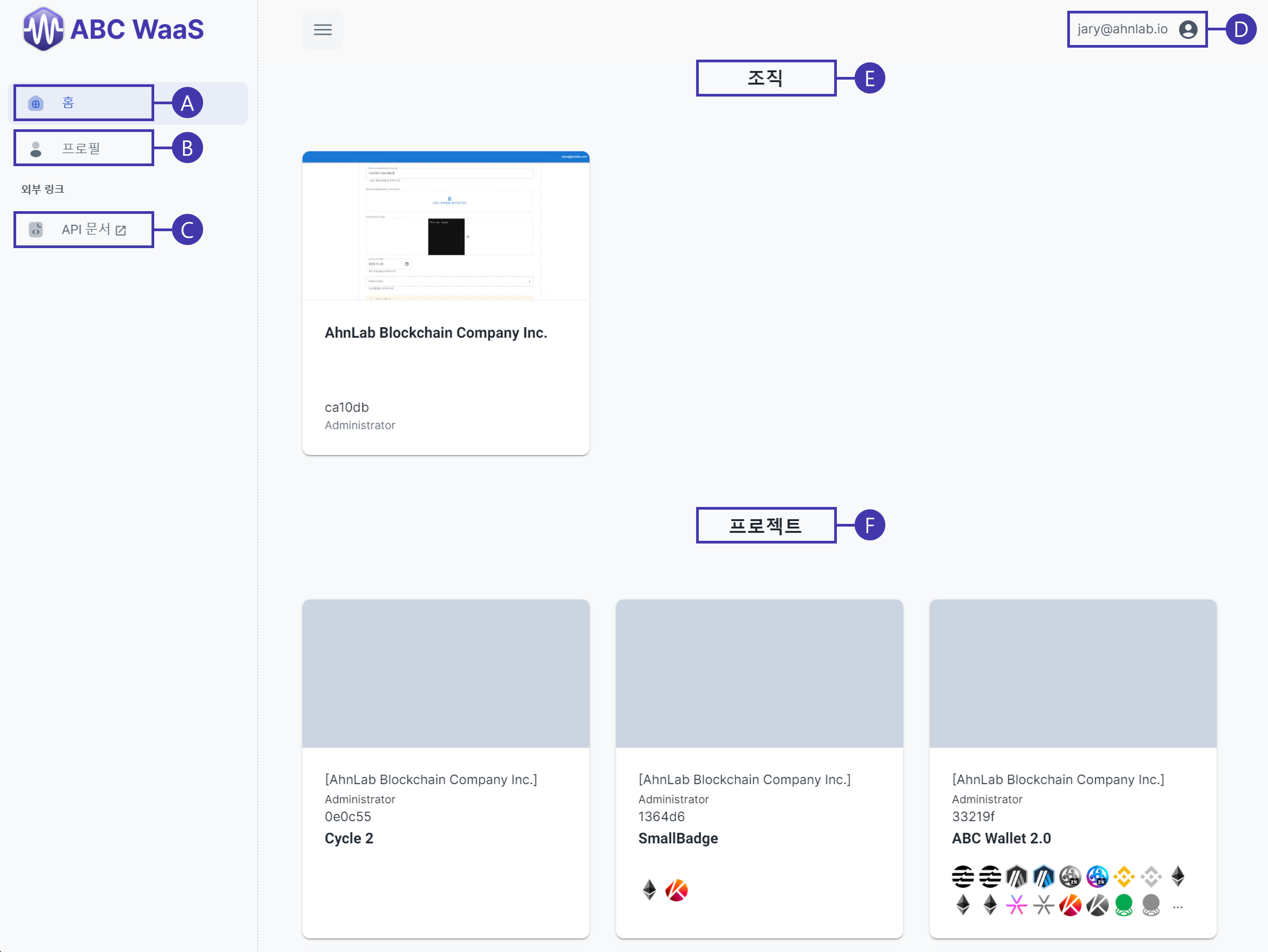 Once the organization and project are created, you can see the created organization and project on the main page after logging in as an admin. The layout is as follows:
A- Main PageB- My Profile SettingsC- Link to API documentation and guidelinesD- My Profile Settings inB, Logout MenuE- List of authorized organizationsF- List of projects with permissions within the organization
Project Settings
Select the project you want to configure or view details for from the F Project List.
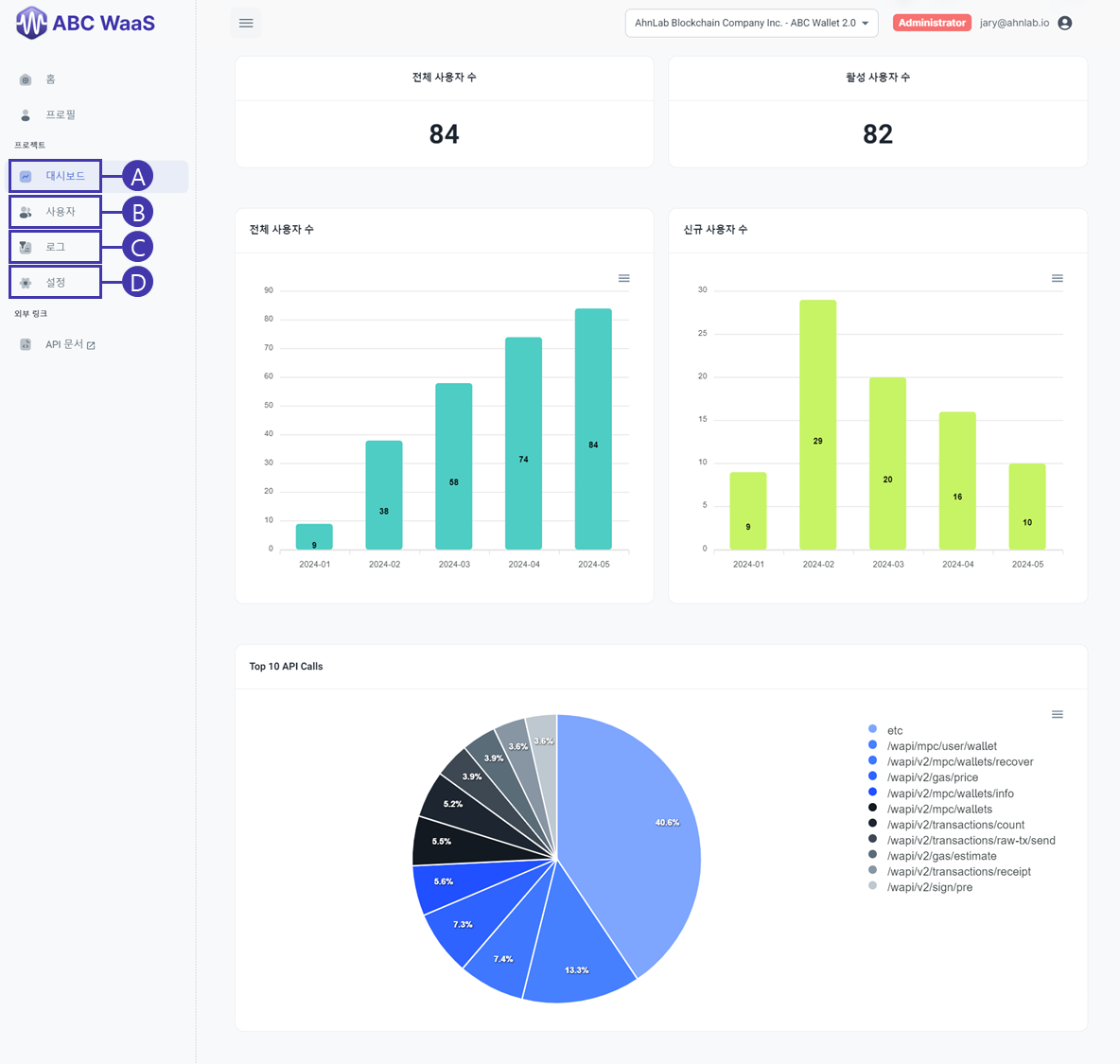
The project layout is as follows:
A- Project Dashboard (User Trends, TOP 10 API Calls)B- Project User ManagementC- API Call LogsD- Project Settings
Dashboard
The dashboard provides graphs showing the total number of users, active users, new users, and TOP 10 API Calls for the project.
For detailed API Call logs, you can check the C Logs menu.
User Management
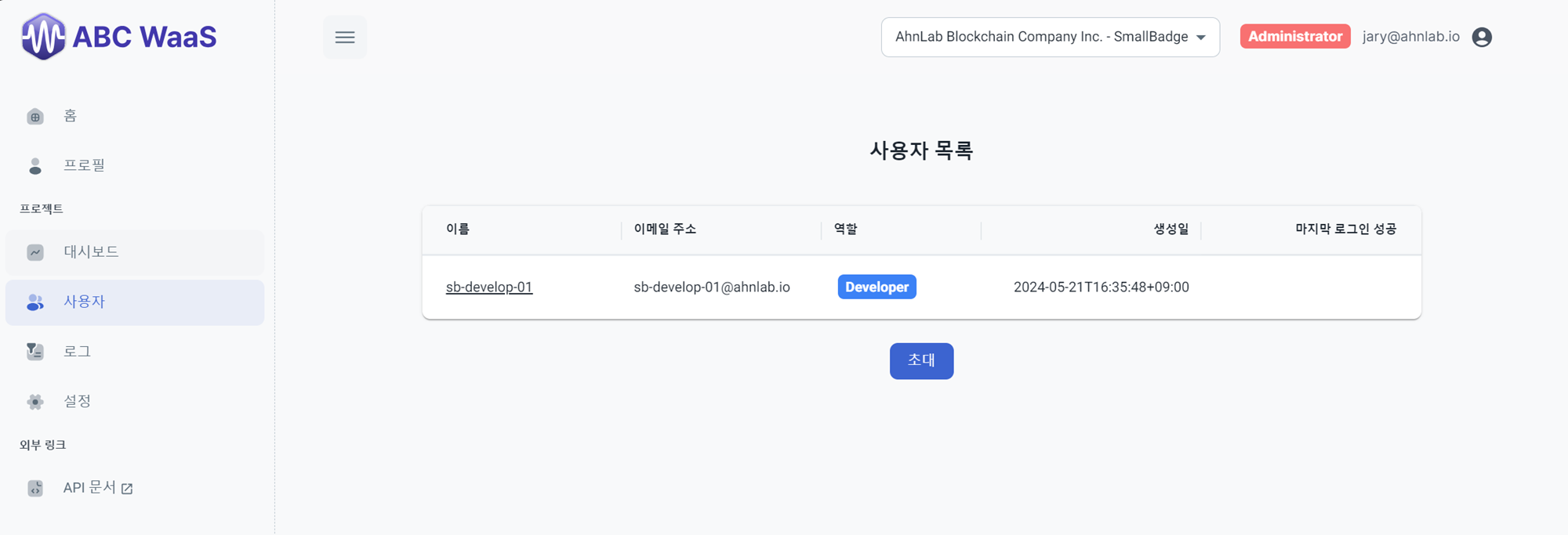
In the user management menu, you can view the list of users in the project. Administrators can add or remove users from the project.
When adding users, an invitation email will be sent to the email address used to add the user, if they are using WaaS for the first time.
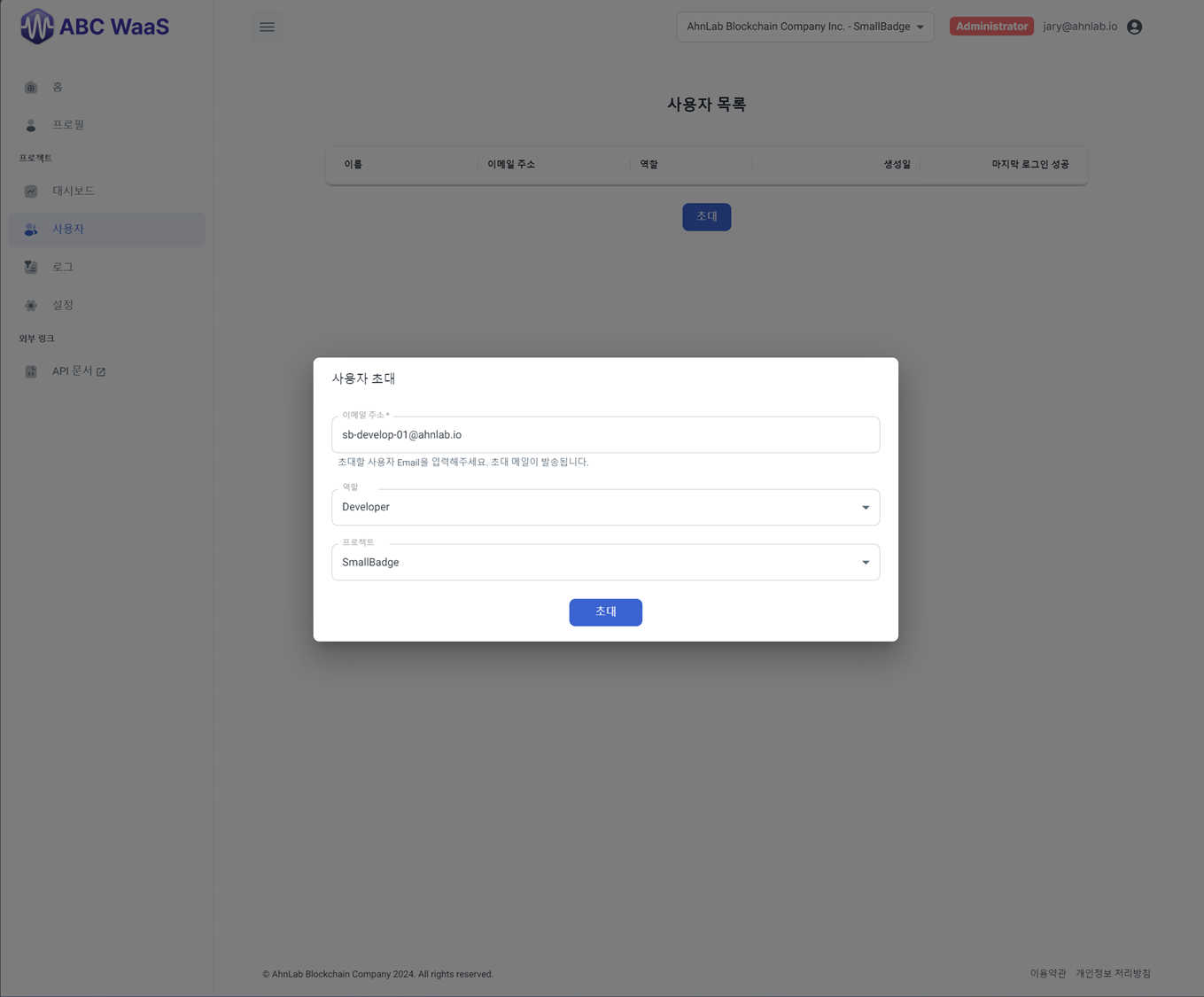
Add users for project management.
Users who receive the invitation email can set their password through the link in the email.
Log Inquiry
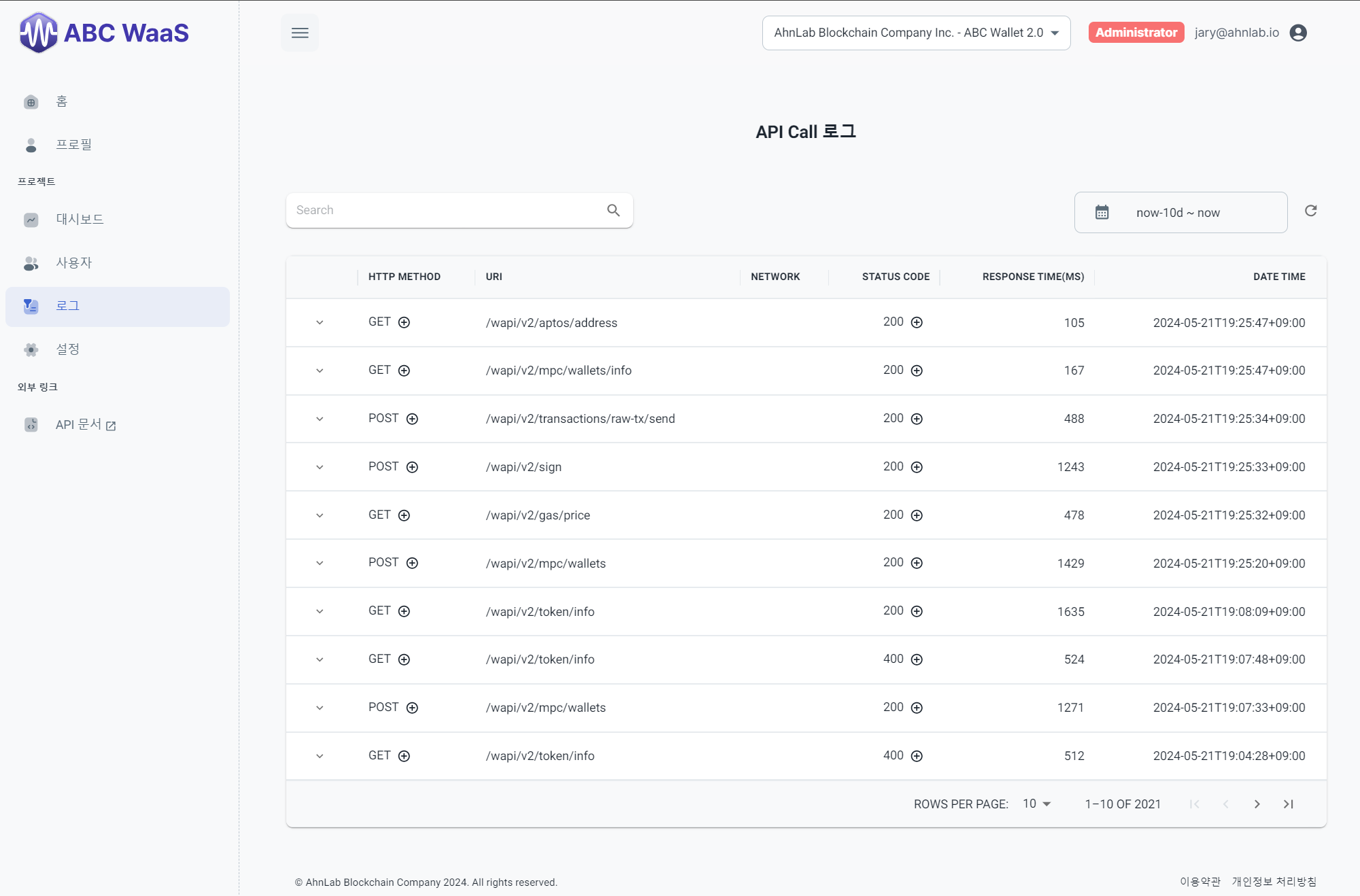 You can view detailed information about the used API requests.
Additionally, you can check the parameters, responses, and headers used in each request by expanding the records on the left.
You can view detailed information about the used API requests.
Additionally, you can check the parameters, responses, and headers used in each request by expanding the records on the left.
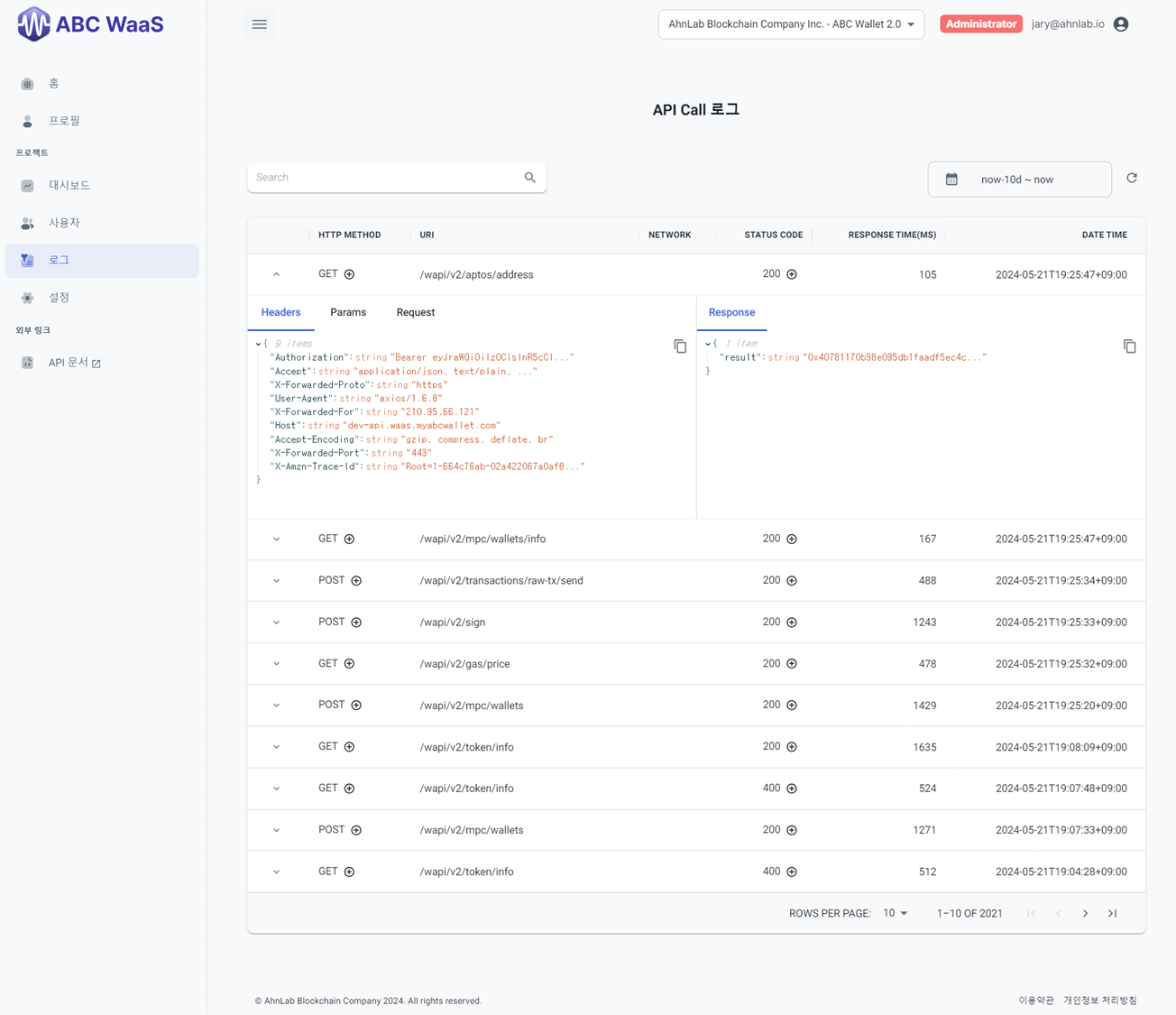 You can add search filter conditions by specifying HTTP METHOD, NETWORK, STATUS CODE, and date range, and it supports keyword search.
Settings
In Project Settings, you can configure project information, API Key, and supported networks.
Project Information
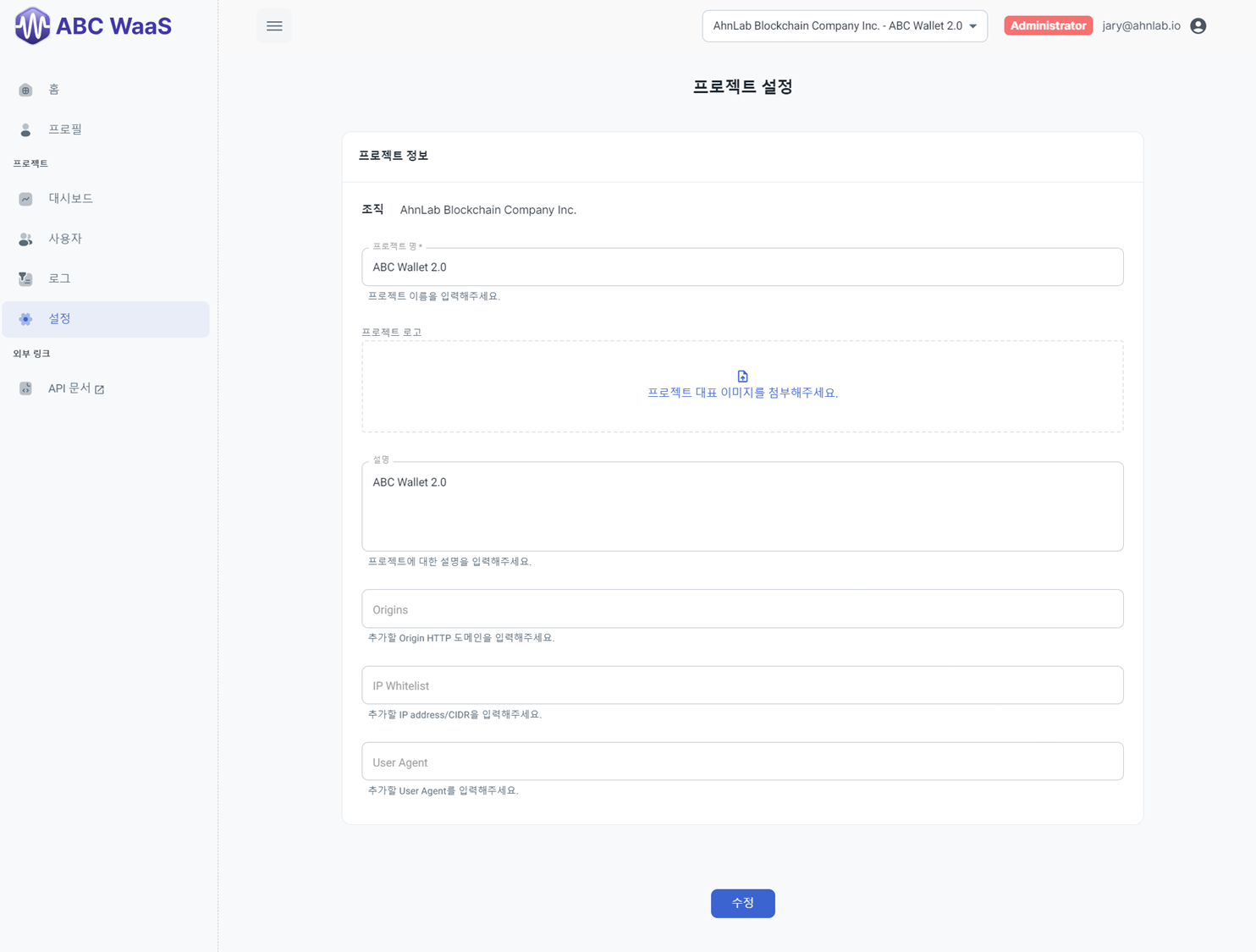
In Project Information, you can view and edit the organization name, project name, project logo, description, Origin, IP Whitelist, and User Agent.
API Key
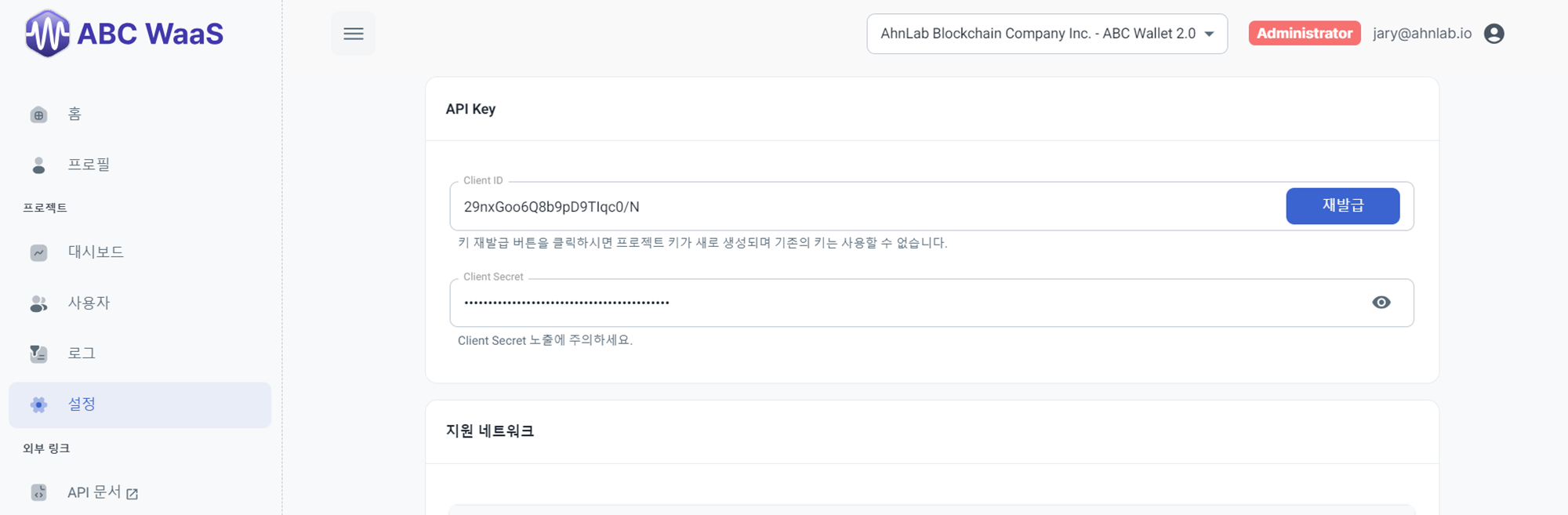
API Keys are managed per project. Issued API Keys are used in the authentication process, and when calling the Login API, the value of the Authorization header should be set as Client ID:Client Secret encoded in Base64 as Basic Credential.
If an API Key is exposed, it is recommended to reissue the API Key in the project settings.
After reissuing, the old API Key can no longer be used.
Supported Networks
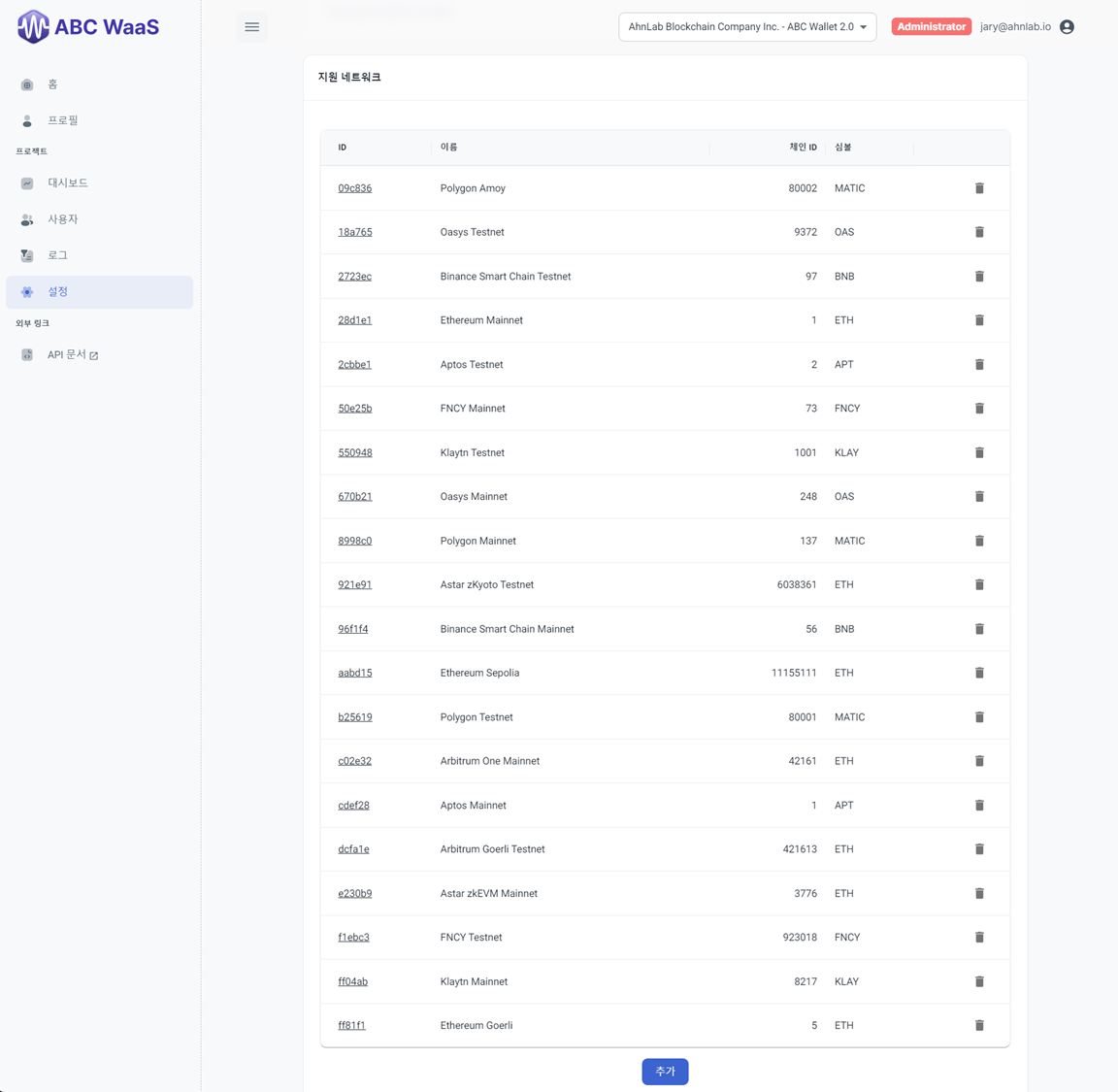
In the supported networks menu, you can manage the networks that the project will support. You can refer to the Supported Networks List provided by the WaaS service for networks that can be added.
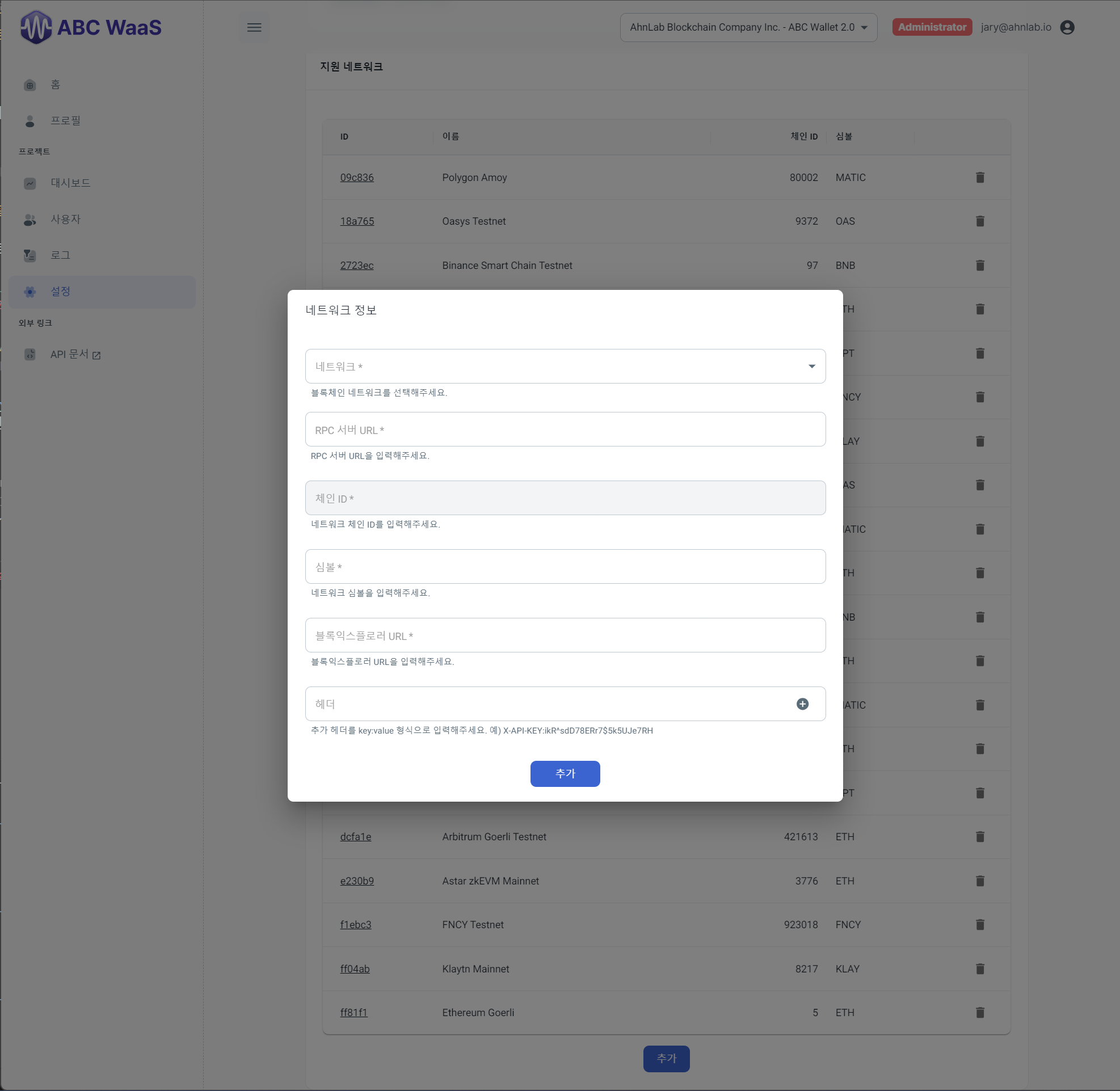
The required items for network management are as follows:
- Network: Select and specify one of the networks supported by WaaS.
- RPC Server URL: Enter the full RPC-URL address including the Query Parameter used for network interaction.
- Symbol: Enter the symbol name of the network.
- Block Explorer URL: Specify the explorer URL used for block inquiries.
- Headers (Optional): Add headers if there are any required for RPC-URL calls.